
WordPress gives you more SEO control than most website platforms, but it does not do SEO for you. A handful of settings, the right plugin and good habits for every page make a big difference.
This guide walks through how to do SEO on a WordPress website step by step, in the order we would set it up for a new client. It is the same approach we use on techpater.com.

- Step 1: Make sure search engines can see your site
- Step 2: Set clean permalinks
- Step 3: Install one SEO plugin
- Step 4: Write titles and meta descriptions for every page
- Step 5: Structure your content
- Step 6: Optimise images
- Step 7: Speed up your site
- Step 8: Connect Google Search Console
- Step 9: Add local SEO basics
- Step 10: Keep it maintained
- FAQ
Step 1: Make sure search engines can see your site
Go to Settings → Reading and check that “Discourage search engines from indexing this site” is not ticked. It is often switched on while a site is being built and forgotten at launch.
Step 2: Set clean permalinks
Go to Settings → Permalinks and choose Post name, so URLs look like /blocked-drains/ rather than /?p=123. If your site is already live with a different structure, set up redirects before changing it.
Step 3: Install one SEO plugin

Use one SEO plugin, such as Yoast SEO or Rank Math. We use Yoast on techpater.com. Then:
- Run the setup wizard and enter your business name, logo and social profiles.
- Check that the XML sitemap is enabled (Yoast creates one at
/sitemap_index.xml). - Hide content types that should not appear in Google, such as template or form post types, from search results.
- Set author archives to noindex if you are the only author.
When we did this on our own site, our sitemap went from 53 URLs, including junk template pages, to 41 genuine pages.
Step 4: Write titles and meta descriptions for every page
In the SEO box under each page or post:
- Focus keyphrase: the main search the page targets.
- SEO title: include the keyphrase and keep it to around 50 to 60 characters.
- Meta description: a clear summary with a reason to click, around 150 characters.
- Slug: short and descriptive.
Give each page its own keyphrase so your pages do not compete with each other.
Step 5: Structure your content
- Use one H1 per page (usually the page title).
- Use H2 and H3 headings to organise sections. In page builders like Elementor, check what each heading widget is set to, since headings are easy to get wrong.
- Mention the main keyphrase naturally in the first paragraph.
- Answer the questions your customers ask, and add an FAQ section where it helps.
- Link to related pages and posts on your own site.
For the full list of page-level checks, see our SEO checklist for small businesses. Writing blog posts? Follow our guide on how to write an SEO-friendly blog post.
Step 6: Optimise images
- Resize images before uploading (around 1600 pixels wide is plenty for most layouts).
- Use WebP format where possible.
- Rename files descriptively, such as
kitchen-renovation-ryde.webp. - Add alt text that describes the image.
Step 7: Speed up your site
Use a caching plugin, keep plugins to a minimum and test with Google PageSpeed Insights. Our guide on how to speed up WordPress shows the exact settings we use.
Step 8: Connect Google Search Console
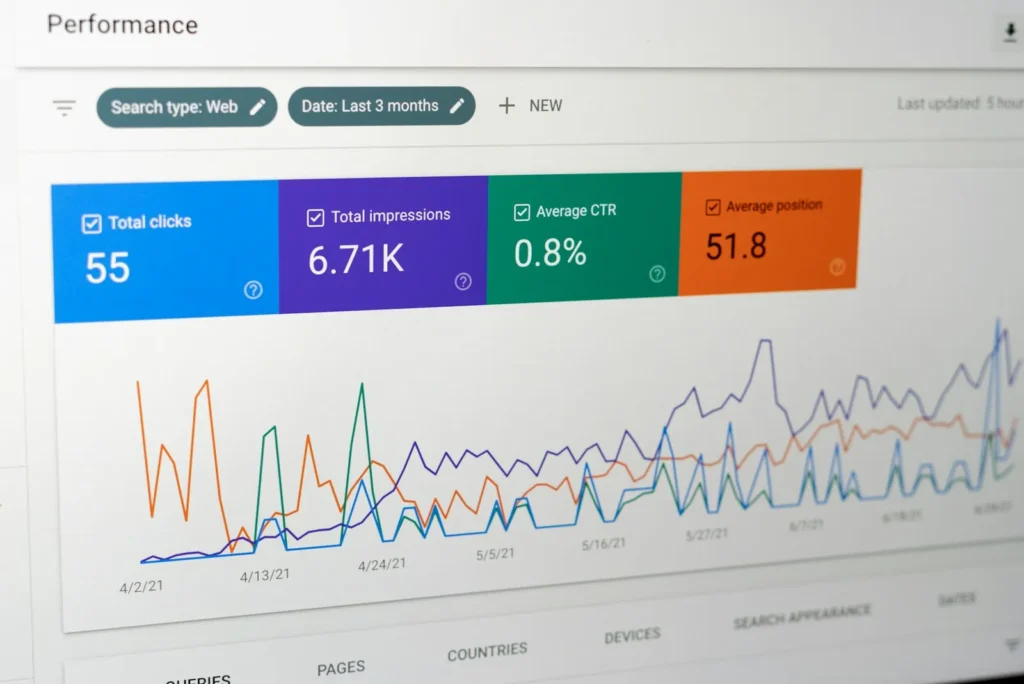
- Add your site as a property in Google Search Console and verify it.
- Submit your sitemap URL.
- Check the Pages report to see which pages are indexed and why others are not.
- Use URL Inspection to request indexing for important new or updated pages.
Step 9: Add local SEO basics
If you serve a local area, add your business name, address and phone number to your footer and contact page, embed a map and link your Google Business Profile to your site.
Step 10: Keep it maintained
- Keep WordPress, themes and plugins updated.
- Fix broken links and redirect old URLs when you change them.
- Refresh older content regularly.
- Run a technical SEO audit every few months.
Building a new WordPress site? Start with our guide on how to build a WordPress website on Hostinger.
Want your WordPress site set up properly for SEO?
TechPater sets up WordPress SEO the right way, from plugin configuration and page optimisation to speed and Search Console, then helps you grow with ongoing SEO.
Frequently asked questions
How do I do SEO on my WordPress website?
Allow search engines in Settings, set Post name permalinks, install one SEO plugin, write titles and descriptions for each page, structure content with headings, optimise images, speed up the site and connect Google Search Console.
Which SEO plugin is best for WordPress?
Yoast SEO and Rank Math are both popular and capable. Use only one; running two SEO plugins can cause conflicts.
Is WordPress good for SEO?
Yes. WordPress gives you strong control over titles, URLs, content and technical settings, especially with a good SEO plugin.
Why is my WordPress site not showing on Google?
Check that “Discourage search engines” is off in Settings, submit your sitemap in Search Console and check the Pages report for indexing issues.
Do I need to update old WordPress posts for SEO?
Yes, refreshing older content with accurate information, better structure and internal links can help it rank again.